-
26
 Lesson 26 – n8n and AI Agents Automation Course
20min
Lesson 26 – n8n and AI Agents Automation Course
20min
-
27
Lesson 27 – n8n and AI Agents Automation Course
23min
-
28
Lesson 28 – n8n and AI Agents Automation Course
20min
-
29
Lesson 29 – n8n and AI Agents Automation Course
14min
-
30
Lesson 30 – n8n and AI Agents Automation Course
22min
-
31
Lesson 31 – n8n and AI Agents Automation Course
Current lesson
-
32
Lesson 32 – n8n and AI Agents Automation Course
18min
-
33
Lesson 33 – n8n and AI Agents Automation Course
10min
-
34
Lesson 34 – n8n and AI Agents Automation Course
17min
-
35
Lesson 35 – n8n and AI Agents Automation Course
13min
-
36
Lesson 36 – n8n and AI Agents Automation Course
10min
-
37
Lesson 37 – n8n and AI Agents Automation Course
9min


Summary
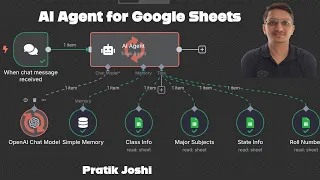
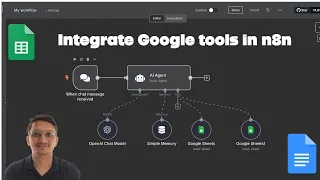
### What You Will Build In this lesson, you construct a complete, no-code automation that connects Google Sheets with an AI agent. The workflow fetches data from a spreadsheet based on user input and uses artificial intelligence to generate accurate, real-time replies. This eliminates manual lookups and delivers instant information to users, whether for customer support, data retrieval, or personal productivity. The entire process runs inside n8n, a visual automation platform, making it accessible even without programming experience.
### How the Integration Works The core of this automation lies in linking external services seamlessly. You start by configuring a Google Sheets node to read rows and columns from your specific spreadsheet. When a user submits a query—such as looking up a price, a contact, or a product detail—the workflow captures this input. It then dynamically searches the sheet, retrieves the matching data, and passes it to an AI model. The AI processes the raw information and crafts a polished, context-aware response that gets sent back to the user. The entire flow happens in seconds.
### Setting Up the AI Agent The AI agent acts as the brain of your automation. Using n8n’s AI nodes, you connect to a language model like OpenAI’s GPT. You provide clear instructions in the system prompt, telling the agent how to interpret the Google Sheets data, handle missing information, and format the reply. The agent can reason over multiple data points, compare values, and even suggest next steps. Because everything is configured visually, you don’t write any code—you simply define the logic through n8n’s graphical interface, which generates the underlying API calls automatically.
### Real-World Applications and Benefits This automation transforms tedious manual tasks into scalable processes. Small businesses can set up an inventory checker where customers ask about stock levels directly from a sheet. HR teams can build an internal bot that pulls employee policies from a spreadsheet. Educators can quickly retrieve student grades or attendance. The key benefit is time savings: once built, the workflow runs indefinitely without human intervention. It also reduces errors caused by manual copy-pasting and ensures every user receives consistent, up-to-date information.
### Step-by-Step Implementation Overview You begin by creating a new workflow in n8n and adding a Webhook trigger to receive user queries. Next, you attach a Google Sheets node linked to your account and test the connection to verify data pulls correctly. Then, you insert an AI node, choosing your model and crafting the prompt to instruct the agent. After linking the nodes, you test the full chain—submitting sample inputs, debugging any output formatting issues, and refining the prompt until the responses meet your quality standards. Finally, you activate the workflow and integrate the webhook URL into your frontend, chatbot, or messaging platform.
### Why This Approach Matters for AI Automation Combining spreadsheets with AI unlocks a new level of productivity. Most people already store critical data in Google Sheets, and n8n removes the barrier between that data and intelligent applications. You don’t need a developer to build a custom API or maintain a complex backend. This method empowers non-technical teams to create sophisticated automations that feel conversational and smart. As AI capabilities advance, such workflows become essential for staying competitive—automating data delivery with human-like understanding is no longer a luxury but a practical skill you can master today.
What you will learn
- How to connect Google Sheets to n8n for automated data reading
- Configuring an AI agent to process spreadsheet data and generate accurate replies
- Building a complete, no-code workflow that responds to user queries in real time
- Testing and troubleshooting integrations between webhooks, sheets, and AI models
Concepts covered
Technologies used
Chapters 5 markers
Next suggested video
Reviews
No reviews yet. Be the first to rate this lesson.