Learn Webflow in English through a curated mix of beginner crash courses, official CMS tutorials and practical interaction workflows for building real responsive websites.
Build Responsive Websites with Webflow CMS and Advanced Interactions
Learn to design and develop fully responsive websites using Webflow's visual canvas and powerful CMS. Master collection pages, dynamic filtering, and advanced animations to create scalable, professional-grade websites without extensive coding.
Videos selected progress from foundational design principles through CMS management to advanced animation techniques, enabling you to build complete content-driven projects in production-ready order.
 16min
EN
16min
ENLearn Webflow in 16 Minutes (Crash Course)
 28min
EN
28min
ENLearn Webflow: Ultimate Beginner Crash Course
 4min
EN
4min
ENBuild & design Collection Pages — Webflow tutorial
 5min
EN
5min
ENCreate & style Collection Lists — Webflow tutorial
 6min
EN
6min
ENBuild, manage and publish CMS Collection content — Webflow tutorial
 7min
EN
7min
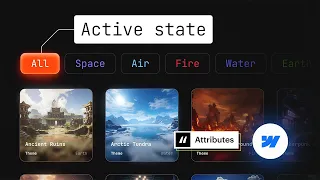
ENCMS filtering on a collection list in Webflow with an ‘All’ button
 49min
EN
49min
ENAdvanced Animations in Webflow: GSAP Crash Course
 29min
EN
29min
ENBuild a Website with Webflow AI (Beginners Crash Course)
 2h 14min
EN
2h 14min
ENFrom Figma to Webflow (Full Beginner Course)
Frequently asked questions about Webflow
How should I start learning Webflow?
Start with the beginner-friendly tutorials, then follow the path in order. This topic favors practical videos that help you build, configure, or publish something real.
Are these videos current?
The selected tutorials were checked against a 2025/2026 freshness window whenever possible, plus embed availability and social proof.
Does this topic include a free course?
This batch publishes a focused topic and a guided path. A separate course is only created when there is a cohesive course-style playlist or long class worth promoting as a course.
Are the tutorials in English?
Yes. This English topic uses English-language videos and marks both the publication and the videos with the English language taxonomy.
Can beginners use this topic?
Yes. The path starts with beginner-friendly material and then adds intermediate videos when the workflow needs more context.
Why are some videos official and others from creators?
Official videos are useful for product context, while independent tutorials often show practical workflows, mistakes and real project decisions.
How does Cursob choose the video order?
The order starts with setup or overview material, then moves toward hands-on practice, longer classes and more specific workflows.
Should I watch every video?
Use the full path if you are new to the tool. If you already know the basics, jump to the videos that match your current project.
Do I need a paid account for Webflow?
Some tools may require an account or paid plan for specific features. The topic focuses on learning workflows, not guaranteeing free access to every feature.
How often should this topic be refreshed?
Digital tools change quickly, so the topic should be reviewed when major product updates, pricing changes or new official workflows appear.
How to study Webflow with context
This initial text is replaced by a specific section generated through the Anthropic/Claude API from the tutorials published in this topic.
Curated learning flow
The selection favors hands-on tutorials, official guidance where useful, and practical workflows over news, speculation, or generic reviews.
Perguntas frequentes sobre Webflow
How do Webflow collection pages automatically generate individual pages from CMS data?
Collection pages in Webflow function as dynamic templates that use a single design blueprint for all items in a CMS collection. When you create a collection page, Webflow automatically generates individual pages for each collection item and populates them with corresponding data through dynamic content binding. This eliminates manual page duplication for blogs, portfolios, products, and other repeating content types.
What is the difference between a collection list and a collection page in Webflow?
A collection list displays multiple items from a CMS collection on a single page using a repeating template, useful for showing summaries or previews. A collection page is a dedicated template that generates individual pages for each collection item, typically showing full details. Collection lists often link to collection pages, creating a complete content browsing experience.
How do you implement CMS filtering with an All button to reset collection lists?
CMS filtering in Webflow uses collection list filters and custom attributes to control which items display based on user selections. The All button resets filters by removing active filter states, causing the collection list to display all items again. This requires setting up filter tags on collection items and binding them to button interactions that toggle filter visibility.
What is dynamic content binding and how does it work in Webflow CMS?
Dynamic content binding connects design elements directly to CMS collection fields, automatically populating page content with database values. Instead of manually entering text, you select a field from your collection schema and bind it to a text block, image, or other element. When collection data changes, bound content updates automatically across all pages using that template.
How do field types in Webflow CMS affect collection page design and functionality?
Field types determine what kind of data your collection can store and how that data displays on pages. Text fields store simple content, image fields bind to images and optimize display, reference fields connect multiple collections, and rich text fields allow formatted content. Choosing appropriate field types ensures your collection structure matches your content needs and enables proper binding in collection pages and lists.
What advantages does GSAP offer over Webflow's native interaction builder for animations?
GSAP provides more precise control over animation timing, sequencing, and easing functions than Webflow's interaction panel. GSAP enables complex staggered animations, ScrollTrigger integration for scroll-based effects, and DOM targeting for advanced interactions. For sophisticated animation requirements, GSAP delivers performance optimization and capabilities that exceed the native builder's scope.
How does ScrollTrigger in GSAP enable animations triggered by scroll position in Webflow?
ScrollTrigger is a GSAP plugin that ties animations to scroll position or viewport visibility. Within Webflow, you implement ScrollTrigger by adding custom code that detects when elements enter the viewport and triggers animations accordingly. This creates engaging effects like fade-ins, slide-ups, or parallax scrolling without using Webflow's built-in scroll interactions.
What is the purpose of dynamic URLs and slugs in Webflow collection pages?
Dynamic URLs use collection item slugs to create unique, readable page addresses for each collection item. Instead of generic URLs like /item-123, a slug creates URLs like /blog-post-title. Webflow automatically generates slugs from collection fields, making URLs SEO-friendly and human-readable while maintaining the dynamic template structure.
How can you structure multiple related collections in Webflow using references and relationships?
Webflow collection references and relationships allow you to connect items from different collections. A reference field in one collection points to items in another, creating connections like products linking to categories or blog posts linking to authors. This enables complex content structures where collection pages display both primary item data and related information from referenced collections.
What is the workflow for migrating a Figma design to a fully functional Webflow website?
The Figma to Webflow workflow involves exporting design specifications, recreating the visual hierarchy in Webflow using flexbox and CSS grid, implementing responsive breakpoints for mobile and desktop, binding elements to CMS collections if dynamic, and adding interactions. Understanding both tools allows designers to translate static mockups into production-ready websites while maintaining design intent and ensuring functionality.
Building Dynamic, Scalable Websites with Webflow: From Responsive Design to Advanced Interactions
Webflow represents a transformative approach to web design and development, combining visual design capabilities with the power of a Content Management System and advanced animation libraries. This topic explores the complete workflow of building professional, responsive websites using Webflow's core features, from establishing responsive design foundations through implementing dynamic CMS content, collection-based filtering systems, and sophisticated animations using GSAP.
Understanding Webflow as a Modern Design-to-Development Platform
Webflow bridges the gap between traditional design tools and code-based web development by providing a visual canvas that generates clean HTML, CSS, and JavaScript underneath. Unlike conventional drag-and-drop builders that obscure underlying code, Webflow maintains transparency between design decisions and their technical implementation. This architecture allows designers to understand how their visual choices translate into responsive behavior across devices, making it ideal for those who want design freedom without sacrificing technical control. The platform integrates web hosting, custom domains, and deployment directly, eliminating the need for external infrastructure while maintaining professional-grade performance standards.
The core value proposition of Webflow lies in its elimination of the traditional design-to-development handoff. Designers who traditionally created static mockups in tools like Figma can now build fully functional, interactive websites directly within Webflow, understanding constraints and possibilities in real time. This workflow reduces miscommunication between design and development teams and accelerates project timelines significantly. The Flux Academy crash courses demonstrate how beginners can launch production-ready websites within hours by leveraging Webflow's interface, CMS, and interaction capabilities without writing extensive code.
Mastering Responsive Design Through CSS Grid and Flexbox
Responsive design in Webflow centers on understanding flexbox and CSS grid as the primary layout systems. Flexbox provides one-dimensional layout control, ideal for navigation bars, button groups, and linear arrangements where elements should flex and wrap based on available space. CSS grid enables two-dimensional layout control, perfect for complex page structures where content needs to align both horizontally and vertically across rows and columns. Webflow's visual interface abstracts these CSS complexities, allowing designers to set flexbox properties and grid configurations through intuitive panel controls rather than writing code directly. The platform automatically generates responsive behavior when you establish breakpoints, which define how layouts adapt to specific screen sizes like mobile phones, tablets, and desktops.
Implementing breakpoints in Webflow involves designing at key device widths and adjusting layout, typography, and spacing accordingly. The platform allows you to create custom breakpoints beyond default mobile, tablet, and desktop sizes, enabling precise control over how designs respond to any screen dimension. When you adjust properties at a specific breakpoint, Webflow cascades those changes downward while maintaining properties from larger breakpoints, reducing redundant work. The Flux Academy beginner crash course emphasizes starting designs at desktop width then progressively refining mobile experiences, ensuring content hierarchy remains clear and interactive elements remain accessible across all devices.
Building Dynamic Content with Webflow CMS Collections
Webflow CMS Collections function as the database layer for content-driven websites, eliminating the need for external content management systems or backend databases. Collections are defined by their field types, which determine what data each item can contain. A blog collection might include text fields for title and slug, rich text fields for post content, image fields for featured images, and date fields for publication dates. The Webflow tutorial on building, managing, and publishing CMS collection content demonstrates that once you establish your collection structure, content creators can add, edit, and organize items directly through an intuitive editorial interface, while developers focus on how collection data displays across pages.
The power of collections emerges when combined with collection pages and lists. A single collection page template automatically generates individual pages for each collection item, with URLs dynamically created from slug fields. Dynamic content binding connects design elements directly to collection fields, so when editors update content, changes propagate automatically across all pages using that template. This scalability transforms how websites handle content updates: instead of manually editing dozens of pages, editors work in a centralized content interface, and Webflow handles the distribution. Field types like references and relationships enable connections between collections, allowing products to link to categories or blog posts to reference multiple authors, creating sophisticated content structures.
Implementing Interactive Filtering Systems for Collection Lists
Collection list filtering in Webflow enables dynamic organization of content without page reloads, creating smooth user experiences for browsing portfolios, product catalogs, or blog archives. The thelazygod tutorial demonstrates implementing an All button alongside category filters, allowing users to toggle between filtered views and see all collection items. This requires assigning filter tags to collection items through custom attributes, then binding those attributes to interactive buttons. When a user clicks a filter button, Webflow's interaction system updates which items display in the collection list while maintaining the page context, making content discovery intuitive without requiring separate category pages.
Advanced filtering extends beyond single-category selection by combining multiple filters, allowing users to narrow results by multiple criteria simultaneously. Implementing search functionality alongside filters creates powerful content discovery systems where users can both search by keyword and filter by category, date, or other custom attributes. The filtering approach in Webflow preserves the single-page experience while providing the organization benefits of multi-page category structures. For performance, collection lists with filters load more efficiently than paginated systems with numerous separate pages, making filtering an optimal choice for large content libraries while reducing overall site load times.
Creating Advanced Interactions and Animations with GSAP
While Webflow's native interaction builder handles standard animations and state changes effectively, GSAP (GreenSock Animation Platform) enables sophisticated effects that transform websites into engaging, dynamic experiences. The Flux Academy GSAP crash course reveals that GSAP provides precise control over animation timing, sequencing, and easing functions far beyond the interaction panel's capabilities. Tweens represent individual animations of properties from one value to another, timelines allow sequencing multiple tweens in coordinated patterns, and stagger parameters animate similar elements with consistent delays, creating elegant cascading effects. For example, a product showcase might stagger image reveals, fade text sequentially, and trigger scale transformations when users interact with specific elements.
ScrollTrigger, a GSAP plugin, elevates animations by triggering them based on scroll position or viewport visibility, creating responsive animations that engage users as they explore page content. Within Webflow, integrating GSAP involves adding custom code sections that reference the GSAP library and define animation sequences targeting specific elements via their class names or IDs. DOM targeting becomes critical, requiring designers to understand how Webflow structures HTML so they can reliably select elements for animation. The combination of GSAP's animation power with Webflow's visual design creates production-ready websites with sophisticated motion design that would traditionally require extensive JavaScript knowledge, democratizing advanced animation capabilities for designers who prefer visual workflows.
Translating Design from Figma to Production-Ready Webflow Sites
The journey from Figma mockups to functional Webflow websites requires understanding how design specifications translate into implementation constraints and possibilities. The Flux Academy course From Figma to Webflow spans 135 minutes, acknowledging that successful translation involves more than copying layouts. Designers must understand responsive design principles as they apply to their specific designs, recognizing which elements should flex, which should remain fixed, and how whitespace should behave across breakpoints. Typography decisions made in Figma need reconsideration for web, where font sizes must scale readably across devices and line heights must ensure comfortable reading. Components in Figma translate to reusable elements in Webflow, reducing design maintenance as projects evolve.
The practical workflow involves exporting design specifications from Figma including dimensions, colors, typography, and spacing, then recreating visual hierarchy in Webflow using flexbox and grid. Responsive breakpoints established in Figma topic breakpoint configuration in Webflow, ensuring the translated site matches design intent across devices. When CMS integration enters the picture, designers must understand how collection data will populate template areas, adjusting spacing and sizing to accommodate variable content lengths. This workflow eliminates the traditional handoff where designers pass static files to developers, instead creating a collaborative process where design decisions directly influence implementation and both parties understand constraints together.
Optimizing Performance and SEO Through Webflow's Native Capabilities
Webflow's hosted platform provides built-in performance optimization and SEO features that traditional website builders often require separate tools to manage. The platform automatically optimizes images, handles responsive image serving through srcset attributes, and manages caching strategies that reduce load times across geographic regions. Collection pages include dedicated SEO metadata fields where editors define page titles, meta descriptions, and open graph tags, ensuring each dynamically generated page has unique, search-engine-optimized content. The Webflow hosting infrastructure delivers pages through a global CDN, ensuring fast load times regardless of user location, which directly impacts both SEO rankings and user experience metrics.
SEO considerations extend beyond metadata into content structure and site architecture. Webflow's semantic HTML generation ensures proper heading hierarchies, which search engines use to understand content structure and context. Dynamic URLs created from collection slugs provide readable, keyword-relevant addresses that improve click-through rates from search results. Collection list filtering creates deep-linkable content without requiring separate pages for each filter combination, reducing crawl overhead while maintaining content organization. When implementing GSAP animations and interactions, understanding that search engines evaluate core web vitals means choosing animation libraries and techniques that maintain fast load times and smooth rendering, balancing visual sophistication with performance requirements.