-
01
 Lesson 1 – Claude Code 101
2min
Lesson 1 – Claude Code 101
2min
-
02
Lesson 2 – Claude Code 101
Current lesson
-
03
Lesson 3 – Claude Code 101
2min
-
04
Lesson 4 – Claude Code 101
2min
-
05
Lesson 5 – Claude Code 101
3min
-
06
Lesson 6 – Claude Code 101
3min
-
07
Lesson 7 – Claude Code 101
3min
-
08
Lesson 8 – Claude Code 101
3min
-
09
Lesson 9 – Claude Code 101
3min
Summary
The universal reach of Claude Code
Claude Code represents a significant shift in how developers integrate artificial intelligence into their daily work. Rather than being confined to a single interface or requiring a complex, dedicated environment, this tool is built with a philosophy of ubiquity. The core promise is simple yet powerful: it can be installed almost anywhere you develop. This design decision reflects an understanding of the fragmented nature of modern software development. Developers rarely live in just one application; they move between their terminal, a primary IDE like VS Code, specialized tools like JetBrains, and even the browser. By meeting the developer wherever they are, Claude Code removes a critical barrier to entry. The lesson serves as the foundational guide for this setup, emphasizing that the first step in the journey is not just learning to use the tool, but physically bringing it into your existing digital workspace. This approach allows coding agents to become a natural extension of the tools you already trust, embedding intelligence into the fabric of the development process itself rather than standing apart from it.
Choosing your installation environment
A central theme of the lesson is the importance of matching the installation environment to a specific use case. The choice is not merely a matter of personal preference but a strategic decision that can influence the efficiency of a developer's workflow. The terminal installation appeals to those who value speed and precision, allowing for quick, context-aware commands during processes like git operations, server management, or rapid scripting. In contrast, the VS Code installation integrates Claude Code directly into the most popular editor in the world, promising a seamless experience where the AI can see the file structure and understand the project's context without explicit prompting. For developers working on large-scale, structured codebases, the JetBrains integration offers a powerful ally within a sophisticated ecosystem known for its refactoring and intelligence tools. Each environment brings a unique strength, and the lesson guides users through this decision-making process, ensuring that the AI assistant complements the task at hand instead of creating friction.
Terminal integration for command-line mastery
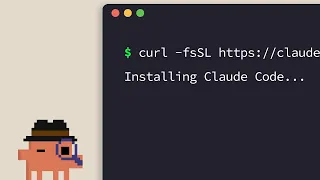
For many developers, especially those working in backend, DevOps, or data science, the terminal remains the command center of their operations. The installation walkthrough for the terminal environment focuses on simplicity and direct access. The process typically involves a package manager command that gets the tool running in minutes, often with a simple npm install or a direct system package. Once installed, the tool becomes accessible from any directory, allowing developers to invoke Claude Code within a specific project context immediately. This method is particularly powerful for automated scripting and quick debugging sessions. The key advantage lies in its lightweight nature; it does not require a heavy GUI to be open, allowing it to run alongside any editor or even on a remote server via SSH. The lesson emphasizes this flexibility, suggesting the terminal as the ideal choice for developers who prioritize a distraction-free interface and the ability to chain Claude Code commands with other native shell commands to create powerful, composite workflows.
Seamless VS Code integration with the extension
Visual Studio Code has become the de facto standard for web development, and the lesson dedicates significant focus to its installation pathway. The walkthrough demonstrates how the Claude Code extension brings AI directly into the sidebar or the command palette of the editor. Installation is often a matter of searching the extensions marketplace, authenticating, and immediately having access to the AI within the chat panel. This integration is designed for flow; developers do not need to leave their editing environment or manually copy and paste code blocks. The AI can read the open files, understand the project's structure, and suggest changes inline. This proximity reduces context switching, which is a major drain on cognitive resources. The lesson highlights that this setup is ideal for front-end developers and full-stack engineers who need to iterate rapidly on UI components, fix syntax errors in real-time, or generate boilerplate code without breaking their visual and structural train of thought within the project tree.
Powerful development inside JetBrains IDEs
The JetBrains ecosystem, with its flagship products like IntelliJ IDEA, PyCharm, and WebStorm, caters to developers who work with deeply typed languages and complex enterprise architectures. The installation walkthrough for this platform demonstrates how Claude Code leverages the robust indexing capabilities of these IDEs. By installing a plugin, developers can give the AI access to the smartest code analysis features available. This allows for refactoring suggestions that are not just syntactically correct but also architecturally sound and aware of the entire project's interdependencies. The lesson suggests this is the preferred environment for Java, Kotlin, C#, and Python developers who rely on strict type-checking and advanced debugging tools. The integration here is less about speed and more about depth, providing a safety net for making large-scale structural changes to a codebase with a high degree of confidence.
Dedicated desktop access and the web client
Beyond the integrated development environments, the lesson also covers the native Claude Desktop application and the web client. The desktop app offers a dedicated space for interacting with the AI, which can be particularly useful when the task involves brainstorming architectures, understanding complex logic, or generating documentation before writing a single line of code. It serves as a central control panel that sits outside the code editor, minimizing the temptation to rush into coding without a plan. The web client, on the other hand, provides the greatest degree of portability. It works on any operating system without installation, making it the go-to choice for quick questions, code reviews on a mobile device, or environments where local installation is restricted by IT policies. By including these options, the lesson ensures that Claude Code is not just an IDE plugin but a pervasive coding companion accessible from any screen.
Matching the tool to the task
The final portion of the lesson focuses on helping the user synthesize the information and pick the right platform based on their specific development reality. It moves beyond simply listing features and addresses the practical variables of a developer's day. For example, a developer working on a massive monolithic repository might find the JetBrains integration indispensable, while a DevOps engineer managing a fleet of cloud instances will likely find the terminal far more practical. A beginner learning to code might prefer the visually guided experience of VS Code, while a researcher might favor the web client for its zero-configuration barrier. The lesson frames this choice as the first act of productivity, ensuring that the powerful capabilities of Claude Code are channeled through a medium that maximizes speed, context, and comfort. This decision is the foundation upon which the rest of the course is built, ensuring the user can immediately apply future lessons in a familiar and efficient habitat.
What you will learn
- Identify the optimal Claude Code installation environment for a given use case
- Install Claude Code in the terminal using package managers
- Add Claude Code as an extension in VS Code
- Integrate Claude Code into the JetBrains plugin ecosystem
- Utilize the Claude Desktop app as a dedicated coding companion
- Choose between the terminal, IDE, and web client for specific development tasks
Concepts covered
Technologies used
Chapters 6 markers
Next suggested video

Reviews
No reviews yet. Be the first to rate this lesson.