-
10
 Lesson 10 – n8n and AI Agents Automation Course
6min
Lesson 10 – n8n and AI Agents Automation Course
6min
-
11
Lesson 11 – n8n and AI Agents Automation Course
9min
-
12
Lesson 12 – n8n and AI Agents Automation Course
7min
-
13
Lesson 13 – n8n and AI Agents Automation Course
11min
-
14
Lesson 14 – n8n and AI Agents Automation Course
Current lesson
-
15
Lesson 15 – n8n and AI Agents Automation Course
15min
-
16
Lesson 16 – n8n and AI Agents Automation Course
9min
-
17
Lesson 17 – n8n and AI Agents Automation Course
15min
-
18
Lesson 18 – n8n and AI Agents Automation Course
7min
-
19
Lesson 19 – n8n and AI Agents Automation Course
15min
-
20
Lesson 20 – n8n and AI Agents Automation Course
13min
-
21
Lesson 21 – n8n and AI Agents Automation Course
2min
Summary
The Core Automation Challenge
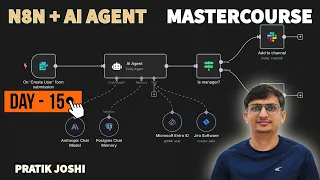
Connecting a popular messaging platform to a powerful automation engine unlocks a new level of conversational capability. This lesson from Pratik Joshi's course focuses specifically on bridging Telegram with n8n to create a functional two-way AI chatbot. The fundamental challenge addressed is not just sending messages, but establishing a persistent, intelligent conversation loop. Instead of a simple broadcast notification, the goal is an agent that receives a user's input, processes it through an artificial intelligence model, and returns a contextual response. The tutorial positions this integration as a foundational template for dozens of use cases, from customer support automation to personalized content delivery.
Setting Up the Telegram Trigger
The workflow begins with the Webhook node, which becomes the critical entry point for real-time automation. The tutorial details how to configure this node specifically for the Telegram API, ensuring that n8n can listen for incoming messages the instant they arrive. A significant portion of the setup involves credential management, where users must authenticate by providing a Bot Token obtained from BotFather on Telegram. The explanation covers how to register this token securely within n8n's credential system, allowing the workflow to act as the bot itself. Once connected, the node is configured to listen for specific events, with the primary focus being the 'message' event. The configuration also includes tips for testing the connection using the 'listener' feature in the n8n editor, which generates a test URL for local development.
Crafting the AI Processing Node
After capturing the user's text input, the data flows into the core intelligence layer of the automation. This section of the video demonstrates the integration of an AI service provider node, typically leveraging an LLM like OpenAI. The instructor emphasizes the critical step of mapping dynamic data, specifically pulling the user's chat message from the Telegram trigger output and injecting it into the prompt or user message field of the AI node. The lesson likely touches on the importance of a System Prompt to set the agent's personality or boundaries, ensuring the automated responses are not just random text but purposeful replies. The configuration involves selecting a model, adjusting the temperature for creativity and coherence, and defining how the response output is structured to be passed smoothly to the next action step.
Closing the Loop with Telegram's Send Action
Once the AI generates a text response, the automation needs to route that data back to the user. This is accomplished by deploying the Telegram node in its 'Send Message' action mode. The tutorial explains the crucial mapping of the Chat ID, a dynamic piece of data received from the initial Webhook trigger. Without correctly mapping this ID, the AI response cannot find its way back to the correct conversation. The video walks through selecting the destination chat and mapping the AI's generated text output into the message field. Special attention might be given to parsing options or Markdown formatting, showing how to send clean, readable messages back to the Telegram client, effectively completing the two-way conversational loop.
Structuring the AI Agent Mindset
Beyond just wiring nodes together, the tutorial introduces the philosophy of building AI agents rather than simple chat bots. The instructor explains how to structure the prompt engineering to handle memory limitations, as n8n workflows are stateless by default. This introduces the potential need for session tracking or using n8n’s built-in variables for short-term memory. The video encourages users to think of this workflow as an agent that can be given access to tools, hinting at future integrations where the Telegram bot could query a database, send an email, or trigger complex HTTP requests based on the conversation context. It frames this specific lesson as a stepping-stone toward fully autonomous agents that react to Telegram commands.
Troubleshooting Common Integration Hurdles
Live automation often comes with friction points, and this segment likely addresses the most common errors encountered during setup. The video covers diagnostics for Webhook URL resolution, particularly differences between running n8n locally versus on a server, suggesting Ngrok for tunneling if necessary. It also addresses JSON parsing errors that occur when the Telegram node receives an unexpected payload format. Authentication failures, typically a result of an incorrect Bot Token or forgotten registration steps in BotFather, are discussed. The instructor provides guidance on how to read the n8n execution logs to trace the data path and identify exactly where the failure occurs, whether in the trigger, the AI processing, or the output step.
Taking the Integration Into Production
The final chapter of the tutorial shifts from building a test case to deploying a reliable production service. Practical advice is given on hosting the n8n instance with a static IP and securing the Webhook endpoint. The video discusses rate limiting on the Telegram side and how to handle it gracefully within the error-handling branches of the workflow. It also touches on expanding the agent’s capabilities using sub-workflows, where the main Telegram workflow delegates tasks to specialized child workflows via the Execute Workflow node. This allows users to keep their bot logic clean while scaling up complex operations, effectively turning a simple AI chat into a full-fledged digital assistant.
What you will learn
- Establish a two-way communication channel between Telegram and n8n
- Configure a Webhook trigger to receive live Telegram messages
- Integrate an AI service node to process user input dynamically
- Map Chat IDs to route automated replies back to the correct user
- Troubleshoot authentication and JSON parsing errors in live workflows
- Design an AI agent prompt structure for contextual conversations
Concepts covered
Technologies used
Chapters 7 markers
Next suggested video
Reviews
No reviews yet. Be the first to rate this lesson.